
General User Guide
Introduction
Welcome to PhysioCam, the non-contact physiological monitoring tool developed by Televagal. PhysioCam allows clinicians and users to observe changes in the autonomic nervous system using a standard camera and advanced signal processing.
This guide explains how to:
- Install PhysioCam
- Log in for the first time
- Install the PhysioCam Virtual Camera
- Run your first PhysioCam session
- Use PhysioCam with telehealth platforms
To make setup easier, the guide is divided into four sections.
Part 1 — Windows Setup Guide
Before You Install: Check Device Compatibility
Before installing PhysioCam, please make sure your device is compatible.
Mac: PhysioCam is compatible with Apple Silicon Macs (M1 and later) only, and is recommended to be run on macOS Tahoe or later for the best experience. Macs with Intel processors are not currently supported.
Windows: Windows computers require a compatible external webcam for accurate readings. We recommend using the Logitech Brio 101, or the Logitech C920 webcam.
If you’re unsure whether your setup is compatible, please contact us and we’ll be happy to help.
0.1 Connect Your USB Webcam
The Logitech Brio 101 and C920 are plug-and-play devices, meaning no manual driver installation is required. Windows will handle the setup process automatically when the camera is connected.
To set up your webcam:
- Locate an available USB Type-A port on your PC.
- Plug in the webcam’s USB cable securely.
- Wait a few moments while Windows automatically detects the device and installs the necessary drivers and software. You may see a notification in the taskbar confirming the installation is complete.
Once setup is finished, the webcam will be available as a camera source in PhysioCam, Zoom, and any other application on your PC that uses a webcam.
Note: If the camera is not detected automatically, try using a different USB port or restarting your PC with the webcam already connected.
1.1 Download the Installer
After purchasing PhysioCam or receiving access from a clinician, you will receive a welcome email from the Televagal team.
This email includes:
- A download link for the PhysioCam installer
- Your username
- A temporary password
Download the installer from the link provided.
The downloaded file will be named:
physiocam-win-installer.exe
Your browser will typically place this file in your Downloads folder.
1.2 Install PhysioCam
- Locate the file physiocam-win-installer.exe
- Double-click the installer to launch it
- The PhysioCam installation wizard will open
Follow the prompts by clicking:
- Next
- Next
- Next
- Install
The installation process may take a few seconds.
When the installer finishes, click:
Finish
PhysioCam will now launch.
1.3 Log In to PhysioCam
When PhysioCam opens, you will see the Login Window.
Enter:
- Your username or email
- Your temporary password
These credentials are located in your welcome email.
If you want PhysioCam to remember your login information, check:
Remember Me
Then click:
Sign In
1.4 Create Your Permanent Password
If this is your first login, PhysioCam will ask you to create a permanent password.
Your password must contain:
- At least 8 characters
- One lowercase letter
- One uppercase letter
- One number
Once created, you will automatically enter the PhysioCam dashboard.
Setting Up Your Webcam
- Purchase your webcam here
- Plug in your webcam using a USB port on your computer.
- Confirm that your camera is recognized by your operating system.
- Once recognized, your camera is ready for use with PhysioCam.
IMPORTANT: To use the Televagal PhysioCam, your camera must not be actively in use by any other application. Before starting the PhysioCam, please close any other applications that may be using your camera.
1.5 Install the PhysioCam Virtual Camera (Windows)
- Zoom
- Microsoft Teams
- Google Meet
- Click the red setup button
- Accept any Windows security prompts
- Allow the installation to complete
This is a one-time setup step.
1.6 Start Your First Session
You are now ready to run PhysioCam.
- Click the Start button
- Wait for your camera image to appear
PhysioCam will begin a short calibration phase.
Calibration typically takes 60–90 seconds.
Once calibration completes, the color bar marker will begin responding to physiological changes.
1.7 Use PhysioCam in Zoom
To use PhysioCam in a Zoom call:
- Open Zoom
- Start or join a meeting
- Open Camera Settings
- Select: PhysioCam
Your Zoom video feed will now show the PhysioCam visualization.
Part 2 — Mac Setup Guide
Before You Install: Check Device Compatibility
Before installing PhysioCam, please make sure your device is compatible.
Mac: PhysioCam is compatible with Apple Silicon Macs (M1 and later) only, and is recommended to be run on macOS Tahoe or later for the best experience. Macs with Intel processors are not currently supported.
Windows: Windows computers require a compatible external webcam for accurate readings. We recommend using the Logitech Brio 101, or the Logitech C920 webcam.
If you’re unsure whether your setup is compatible, please contact us and we’ll be happy to help.
2.1 Download the Installer
After purchasing PhysioCam or receiving access from a clinician, you will receive a welcome email from the Televagal team.
This email includes:
- A download link for the PhysioCam installer
- Your username
- A temporary password
Download the installer from the link provided.
The downloaded file will be named:
physiocam-mac-installer.dmg
Your browser will typically place this file in your Downloads folder.
2.2 Install PhysioCam
- Open physiocam-mac-installer.dmg
- A window will appear showing the PhysioCam application
- Drag the PhysioCam icon into the Applications folder
This completes the installation.
2.3 Launch PhysioCam
- Open your Applications folder
- Double-click PhysioCam
The login window will appear.
2.4 Log In to PhysioCam
When PhysioCam opens, you will see the Login Window.
Enter:
- Your username or email
- Your temporary password
These credentials are located in your welcome email.
If this is your first login, PhysioCam will ask you to create a permanent password.
Your password must contain:
- At least 8 characters
- One lowercase letter
- One uppercase letter
- One number
Once created, you will automatically enter the PhysioCam dashboard.
2.5 Install the PhysioCam Virtual Camera (mac)
To use PhysioCam with telehealth platforms, you must install the PhysioCam Virtual Camera.
If it is not installed, you will see a red setup button inside the PhysioCam application.
To install:
- Click the setup button
- A macOS popup will appear
- Click Open System Settings
In System Settings:
- Locate the PhysioCam Virtual Camera extension
- Enable the toggle switch
- When prompted, enter your computer password
After enabling:
- Close System Settings
- Return to PhysioCam
The setup prompt will disappear, indicating installation is complete.
1.6 Start Your First Session
You are now ready to run PhysioCam.
- Click the Start button
- Wait for your camera image to appear
PhysioCam will begin a short calibration phase.
Calibration typically takes 60–90 seconds.
Once calibration completes, the color bar marker will begin responding to physiological changes.
1.7 Use PhysioCam in Zoom
To use PhysioCam in a Zoom call:
- Open Zoom
- Start or join a meeting
- Open Camera Settings
- Select: PhysioCam
Your Zoom video feed will now show the PhysioCam visualization.
Using the PhysioCam
Once logged in, you will see three main control buttons:
- Start (Green) – Initiates a session.
- Color Bar On/Off (Yellow) – This toggles the color bar on and off when in a call (not in your PhysioCam application window).
- Stop (Red) – Ends the session.
Additionally, available camera sources will be available in a drop-down menu labeled Camera Sources.
- This list should include any connected USB cameras that are available to the PhysioCam software.
- Selecting a camera from this list sets it as the camera to be used in your next PhysioCam session. This cannot be changed during a session.
Steps to Start a Session:
- Verify the Status Indicator: Before beginning, the status indicator will show Stopped.
- Click the Green “Start” Button: This initiates a new session.
- Wait for the System to Start: The middle window will remain empty momentarily while PhysioCam initializes. This may take 60-90 seconds to show your video. During this time, the status indicator for the PhysioCam interface will show “Setting Up”.
- Video Feed Activation: After a few moments, the central window will display the front-facing video feed of the subject.
- Calibration Period: For a short time after the PhysioCam session begins (approximately 90 seconds), PhysioCam will calibrate to the subject’s face and environment.
- The meter marker will be white during this process.
- As the PhysioCam completes its setup and calibration, the status label on the PhysioCam interface shows the following calibration stages:
- “Collecting Pulses”
- “Creating Baseline”
- After calibration, the meter marker will turn black and start moving along the gradient color bar. Additionally, the status label on the PhysioCam interface becomes “Live”.
Ending a Session
To end a PhysioCam session:
- Click the Red “Stop” Button.
- Wait for the Status Indicator to Change: The indicator will switch from Running to Stopped.
- Session Window Resets: The middle window will return to a black, inactive state.
- Once stopped, PhysioCam is ready to start another session.
PhysioCam Lighting Guide
Getting the Best Results
PhysioCam uses your device camera to scan the face, so good lighting is important for accurate readings. Your face should be clearly visible and evenly lit.
If your room lighting is not ideal, an inexpensive ring light or monitor light bar can make a big difference.
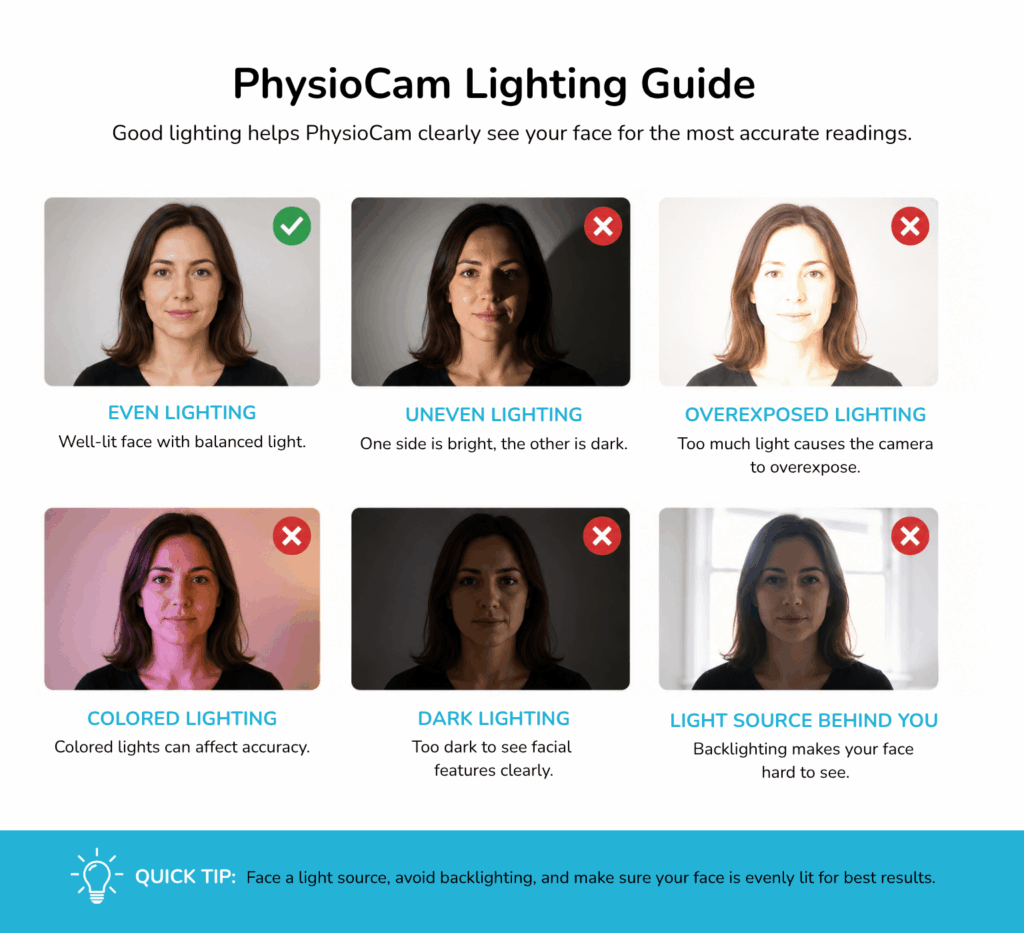
Do’s
✔ Ensure your face is evenly lit and clearly visible on camera
✔ Position light in front of you, not behind you
✔ Use a ring light, desk lamp, or natural daylight if needed
✔ Check your camera preview before sessions to ensure your face looks clear
Don’ts
✘ Dark or dim lighting that makes facial features hard to see
✘ Overly bright lighting that causes the camera to overexpose your face
✘ Uneven lighting, where one side of the face is bright and the other dark (often caused by a window or lamp to one side)
✘ Sitting with a bright window behind you, which can shadow your face
Quick tip: If you can clearly see your face on camera with even lighting and minimal shadows, your setup is likely suitable for PhysioCam.
Interpreting PhysioCam Output
PhysioCam provides real-time feedback on autonomic nervous system activity through a gradient color bar, which transitions from green to yellow to red. This system is inspired by the Polyvagal Ladder developed by Dr. Stephen Porges, though it does not mirror it exactly.
Understanding the Color Bar and Meter Movement
- Unlike the Polyvagal Ladder, which represents absolute nervous system states, PhysioCam’s color bar is dynamic and reflects relative movement and trends in your autonomic nervous system.
- The marker on the meter moves in response to shifts in autonomic activity, indicating a transition towards regulation (green) or dysregulation (red).
- Important: The movement of the meter does not signify an absolute state (e.g., fully ventral vagal or fully dorsal vagal). Instead, it indicates the direction of change in your nervous system’s state relative to your baseline at the start of the session.
Key Considerations for Interpretation
- Session-Specific Readings: Each PhysioCam session establishes a unique baseline. Movement on the meter should be interpreted within a single session, not compared across multiple sessions.
- Context Matters: The meter’s response should be considered alongside your environment and external stimuli. If a particular situation causes a notable change in the marker’s position, this shift might provide insights into nervous system regulation and responses to stimuli.
- Therapeutic Use: By observing how the meter moves in different contexts, you can gain a deeper understanding of nervous system responses, potentially informing therapeutic strategies and interventions.
PhysioCam Troubleshooting Guide
Welcome to the PhysioCam Troubleshooting Guide. If you’re experiencing an issue with the PhysioCam software, this guide will walk you through the most common problems and their solutions.
If your issue is not listed here, please contact our support team at su*****@*******al.com or open a support ticket within your Televagal.com account.
Login Issues
I can’t log into my PhysioCam account.
- Check your email and password for typos or incorrect capitalization.
- Ensure your internet connection is active and stable.
- Confirm that your PhysioCam subscription is active.
- Still not working? Use the “Forgot Password” option to reset your credentials.
Camera Issues
The camera feed is black or not showing.
- Make sure no other application is using the camera (e.g., Zoom, FaceTime, OBS).
- Restart PhysioCam and try again.
- Confirm that the PhysioCam software has permission to access your camera:
- On Mac: Go to System Settings → Privacy & Security → Camera, and ensure PhysioCam has permission.
- On Windows: Go to Settings → Privacy → Camera, and allow access for PhysioCam.
- If the issue persists, close the PhysioCam software fully and terminate any remaining processes:
- On Mac: Go to Activity Monitor and end any processes called PhysioCam
- On Windows: Go to Task Manager and end any processes called PhysioCam
- When all PhysioCam processes have been ended, try restarting the PhysioCam software.
Camera freezes or lags.
- Close any unnecessary programs running in the background.
- Check your device meets the minimum system requirements.
Data and Reading Issues
PhysioCam readings are stuck or not updating.
- Ensure that you are well-lit and facing the camera with minimal movement.
- Ensure yours is the only face visible to your camera.
- Avoid strong backlighting or sitting in the dark.
- If you’re wearing glasses or a mask, try removing them.
- Restart the software and try again.
Values are jumping or inconsistent.
- Sit still, breathe normally, and try to minimize head movement.
- Make sure the background is not moving (e.g., ceiling fans or shadows).
- If your lighting conditions are extreme, try adjusting your position or the lighting.
PhysioCam Performance
The software won’t open or crashes on launch.
- Ensure your operating system is up to date.
- Restart your computer and try launching again.
- Reinstall the latest version of PhysioCam from the official download link.
The software is slow or unresponsive.
- Close other apps that may be using large amounts of memory
- Close browser tabs to free up memory
Updates and Installation
The installer doesn’t work / file won’t open.
- Make sure you are running a compatible operating system version. For compatible versions and minimum device requirements, please visit our website.
- Make sure the installer file download is fully completed. If the downloaded file name starts with ‘unconfirmed…’ or ends in ‘.crdownload’, it hasn’t finished downloading and is incomplete. Check the downloads log in your web browser to identify the issue.
- On Windows, try right-click → Run as Administrator.
I'm not sure if I have the latest version of PhysioCam.
- The PhysioCam software is designed to receive automatic updates as soon as they are available from Televagal.
- PhysioCam checks for updates automatically each time the PhysioCam is launched.
- To check the version of your installation, check the version number at the bottom of the PhysioCam login screen.
- If you think you have an old version, launch the PhysioCam, then close the app and wait for 5 minutes. Relaunch the app to check for the new version.
Still Need Help?
If you’ve tried the steps above and you’re still having issues, please contact us with the following information:
- A description of the issue you’re having
- Your device type and operating system (e.g., Windows 10, macOS 13)
- The version of PhysioCam you’re using (found in the bottom-right corner of the login screen)
- Any screenshots or error messages you’ve received
Fill out the contact form on this page.